


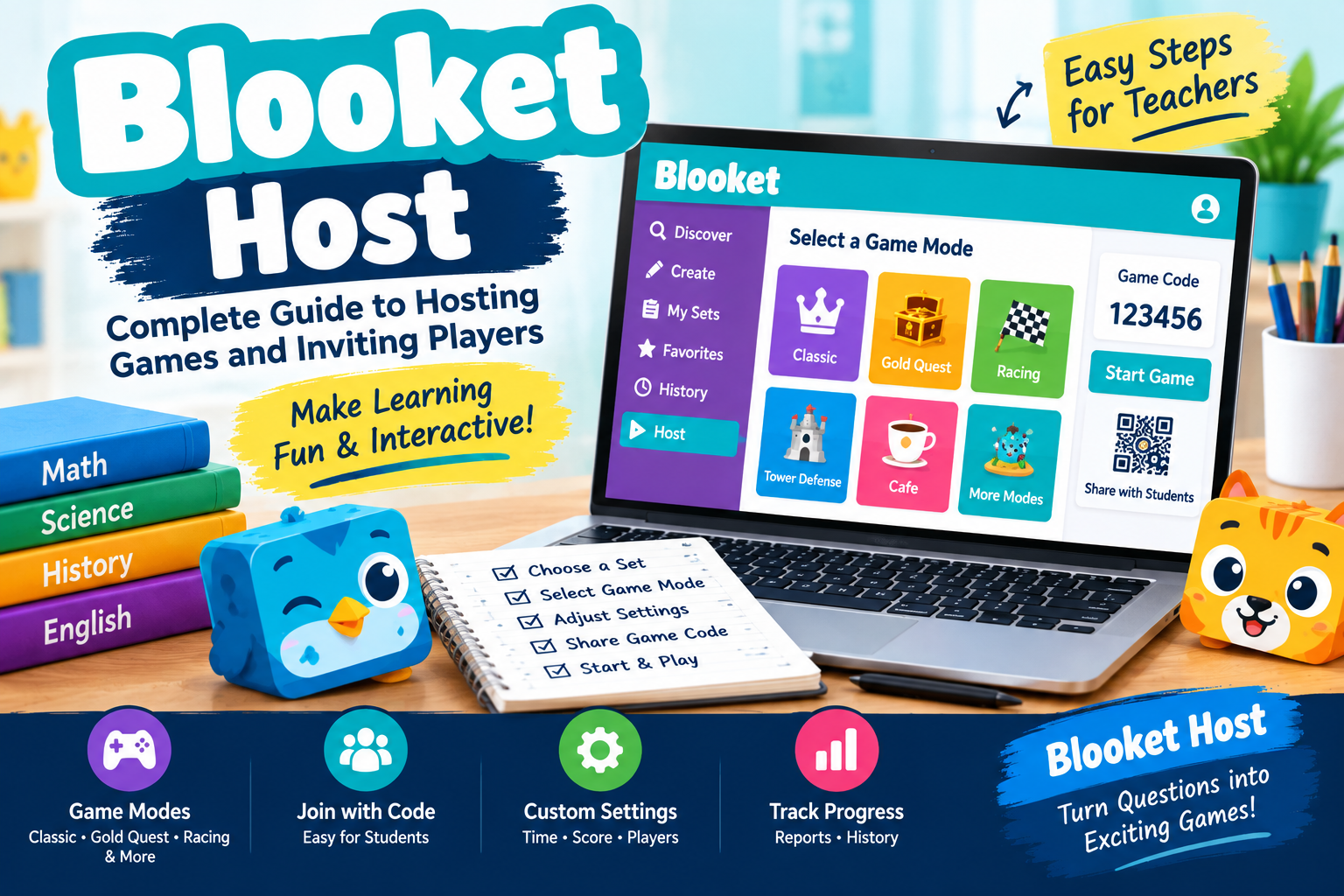
Blooket Host: Complete Guide to Hosting Games, Joining Players, and Classroom Learning
Online learning tools have changed the way teachers present lessons and help students practise new concepts. One popular platform for interactive classroom activities is Blooket, which combines educational questions with different game experiences. The Blooket Host feature allows educators to organise games, select question sets, and invite students to participate in engaging learning activities.
Whether you are a teacher preparing a classroom quiz or someone learning how the platform works, understanding Blooket hosting can make the experience easier. You can use hosted games for revision, classroom competitions, vocabulary practice, mathematics exercises, and general knowledge activities.
This guide explains what Blooket Host means, how to host a game, how players join, which features are useful, and how to resolve common problems.
What Is Blooket Host?
Blooket Host refers to the process of organising and starting a game through the Blooket educational platform. A host selects a question set, chooses an available game mode, configures the relevant settings, and starts the activity.
In a typical classroom session, the teacher acts as the host while students participate using their own devices. Once the session is ready, the host shares a game code or another available joining option with the class.
Blooket combines question answering with game mechanics that may involve collecting rewards, competing in races, or completing strategic challenges. The exact experience depends on the selected game mode.
The platform can be useful for teachers who want to make revision more interactive without preparing an entirely new activity for every lesson.
How to Use Blooket Host Step by Step
Follow these steps to organise a Blooket game.
Step 1: Visit the Official Website
Open the official Blooket website at https://www.blooket.com/.
Sign in to your account or review the available registration options if you are a new user. Use the official website to protect your account information.
Step 2: Select a Question Set
After signing in, explore the Discover section to find an existing question set or open My Sets to access your saved material.
Choose questions that match your lesson objectives. For example, a mathematics teacher might select multiplication questions, while an English teacher could use vocabulary or grammar exercises.
You can also create your own question set when existing material does not meet your classroom requirements.
Step 3: Choose the Host Option
Open your selected question set and look for the Host option. Choose it to view the available game modes.
The exact options displayed may depend on the platform’s current features and the question set you have selected.
Step 4: Select a Game Mode
Blooket provides different styles of educational gameplay. Classic is suitable for straightforward question-based competition, while Gold Quest introduces rewards and unexpected outcomes.
Other available modes may involve racing, resource management, or strategic challenges. Consider your students’ ages, lesson objectives, and available time when making a selection.
Step 5: Configure Game Settings
Review the settings available for your selected mode. Depending on the activity, you may be able to adjust the time limit, target score, player names, or joining options.
Choose settings that allow students to participate comfortably and keep the activity focused on learning.
Step 6: Start the Game
Once the settings are ready, start the hosting session. Blooket will display the joining information needed by participants, such as a Game ID or an available link or QR code.
Keep the joining information visible so that students can enter the correct session.
Step 7: Invite Players
Ask students to visit https://play.blooket.com/ and enter the game code provided by the host. If an alternative joining method is displayed, you can share that instead.
Check that participants have joined successfully before starting the game. Explain the rules and answer any questions so everyone understands how to participate.
For additional help, visit the official Blooket Help Center at https://help.blooket.com/.
Popular Blooket Game Modes
Choosing the right game mode can make your activity more enjoyable and useful.
Classic: A straightforward option for practising questions and competing for points.
Gold Quest: Adds rewards and unexpected outcomes to question-based gameplay.
Racing: Encourages players to answer questions as they compete to reach the finish line.
Tower Defense: Combines answering questions with strategic decisions and defensive gameplay.
Cafe: Uses a cafe-themed experience involving questions and resource management.
Availability may vary, so check the current options shown when you host a game.
Benefits of Using Blooket Host
More Interactive Learning
Hosted games encourage students to answer questions and participate actively. This can make revision sessions more engaging than activities that rely entirely on reading or listening.
Flexible Classroom Activities
Teachers can use Blooket for lesson introductions, practice exercises, topic reviews, and informal knowledge checks.
Convenient Group Participation
Students can join a shared game using the joining information provided by their teacher. This makes it easier to organise activities for an entire class.
Support for Different Subjects
Question sets can cover mathematics, science, languages, history, and other educational topics. Teachers can choose suitable material based on their curriculum.
Helpful Performance Feedback
Available game history and reports can help teachers identify questions that students found difficult. These insights can guide future lessons and revision activities.
However, game scores should be considered alongside other assessments rather than treated as the only measure of student understanding.
Common Blooket Host Problems and Solutions
Game code is not working: Check the code carefully and ask the host to confirm that the session is still available.
Players cannot join: Make sure the game has started hosting successfully and that participants are using the correct joining page.
The game loads slowly: Check the internet connection, refresh the page, or try another supported browser.
The wrong question set was selected: End or leave the session as appropriate and start a new game using the correct set.
Students have trouble understanding the game: Explain the rules before starting and choose a mode suitable for the class’s age and experience.
If these solutions do not work, consult the official Help Center for updated troubleshooting information.
Tips for Successful Blooket Hosting
Prepare your questions before the lesson and review them for accuracy. Select a game mode that supports your learning objectives rather than choosing one only for its entertainment value.
Share the game code clearly, give students time to join, and establish simple rules for respectful competition. After the game, discuss incorrect answers and explain the concepts behind them.
Teachers should also balance game-based learning with discussion, written exercises, and other classroom activities. This helps ensure that entertainment supports meaningful learning.
Conclusion
Blooket Host gives educators a convenient way to organise interactive question-based games. By selecting a suitable question set, choosing a game mode, adjusting settings, and sharing joining information, teachers can create engaging learning sessions for their students.
The platform can support revision, classroom participation, and practice across a range of subjects. For the best results, use relevant questions, explain the rules clearly, and review students’ performance after the activity.
With thoughtful preparation, Blooket hosting can become a useful part of a balanced classroom learning strategy.
Frequently Asked Questions (FAQs)
1. What is Blooket Host?
Blooket Host is the process of starting and managing a game on Blooket so that other players can participate in an educational activity.
2. How do I host a Blooket game?
Visit Blooket, sign in, select a question set, click Host, choose a game mode, configure the settings, and start the session.
3. How do players join a Blooket host game?
Players can visit https://play.blooket.com/ and enter the game code shared by the host. Other joining options may also be available.
4. Can I host Blooket games for free?
Blooket offers free access to core features, although some features or usage limits may depend on the subscription plan. Check the official website for current details.
5. Can students host Blooket games?
Hosting features depend on account access and the platform’s current rules. Users should check their account options and Blooket’s official guidance.
6. Which Blooket game mode should I choose?
Classic works well for straightforward quiz practice, while other modes provide different game mechanics. Select a mode that matches your subject, class, and learning objectives.
7. Why can players not join my Blooket game?
The session may not be active, the code may be incorrect, or a player may have a connection problem. Verify the code and ensure the game is available.
8. Can Blooket Host be used for online classes?
Yes. Teachers can share a game code or supported joining link with remote students who have internet access and compatible devices.
Contact Us
Do you have a question, correction, or suggestion about this Blooket Host guide? We welcome feedback from teachers, students, and readers interested in educational technology.
Contact Information
- Website: [Insert your website name]
- Email: [Insert your official contact email]
- Contact Page: [Insert your website contact page URL]
Please replace these placeholders with your actual contact details before publishing. For account problems, hosting questions, or platform-specific support, visit the official Blooket Help Center.
